
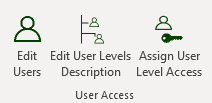
Edit Users

| Field | Description |
| UserID | Each new user is automatically assigned a user ID |
| Username | Give the user a name. The username is not case sensitive. Keep it simple and easy to remember |
| Password | Assign a password. Remember the administrators will always be able to change a password if the user forgets theirs. |
| User Level | Select one of the 5 levels of access defined in Edit User Levels Description. |
Edit User Levels Description

NIMS allows for 5 different levels of access. Each level of access can be tailored to meet your requirements. See Assign User Level Access.

NIMS has 5 levels of access. They are pre-named but you can rename them as you wish.
Assign User Level Access

NIMS allows you to tailor each level to suit your user level access. It is suggested that your top level always has access to everything so that you do not accidentally lock yourself out of the system.
In order to assign user access a basic understanding of the menbu structure is required.
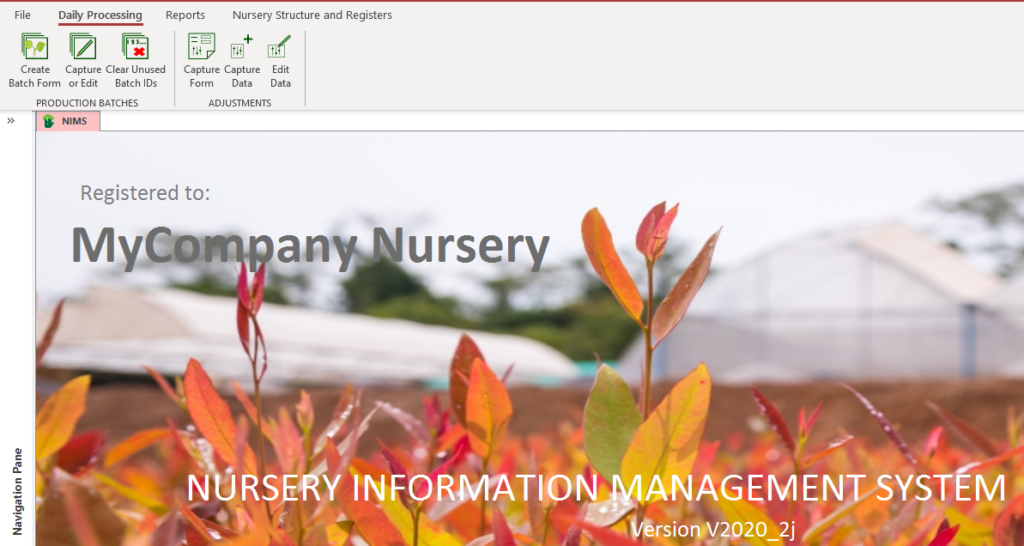
The menu is broken down into Tabs, Groups and Menu Items or Buttons

In the menu ribbon above the
- Tabs are File, Daily Processing, Reports etc
- Groups are PRODUCTION BATCHES, ADJUSTMENTS etc
- Buttons are Create Batch Form, Capture or Edit, Clear Unused Batch ID’s, Capture Form, Capture Data etc
The user can only click or select a button. The Tabs and groups are there to allow for organisation into logical groups of buttons.
You cannot allow access to a button without allowing access to the group or tab.
You can hide a single button, an entire group of buttons or an entire tab of groups.
The NIMS menu is very powerful in allowing you to structure access to data for your users.
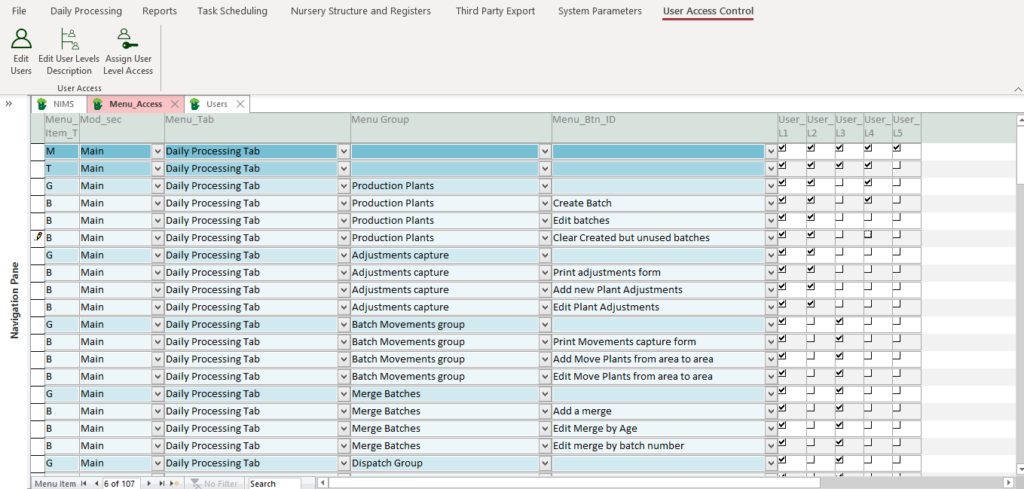
In the above example Level 1 has access to everything, Level 2 to the first 2 groups in the tab, Level 3 to the thrird and fourth group and level 4 to part of the first group.
A full menu such as the administrator would be show all possible tabs, groups and buttons. Below is what the administrator(Level 1) would see:
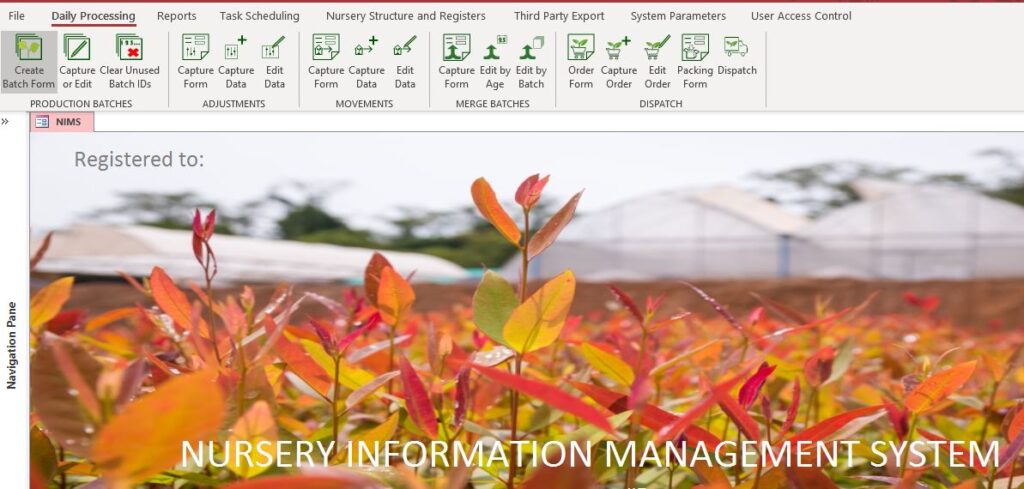
In our example we have removed the ability in level 2 to process batch movements and merges as well as access to dispatch. We have allowed the user access to the reports tab and the Nursery Structure tab. Below is what the Level 2 user ribbon would look like.
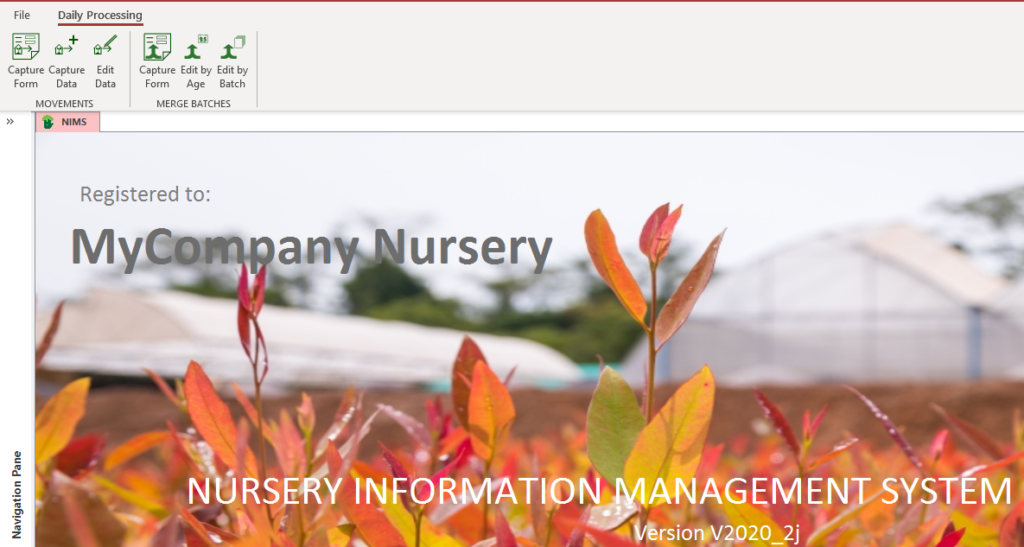
In the next example we have removed all tabs except the daily processing tab and only allowed the user to process batch movements and merges.
In the final example all the user can do is process daily batches.
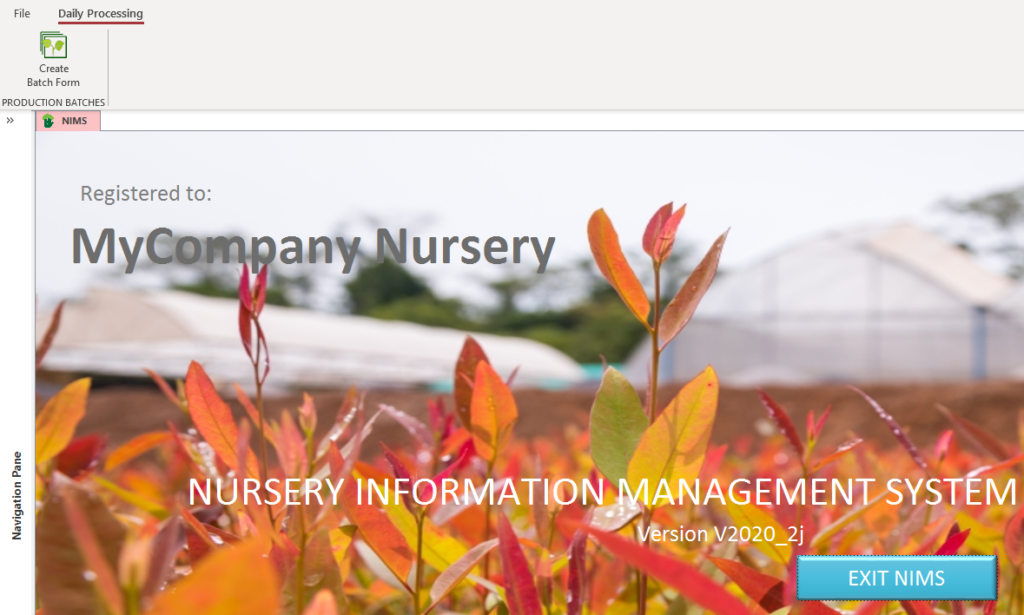
One can see from the above that access can be fully tailored allowing you to secure your information and only allow access to certain data as required.