
Upload

NIMS will automatically upload the third party information as per the settings. However you can also manually force an upload by clicking on the Upload menu option.
Access to the data is setup by NIMS and you will receive usernames and password to access the FTP server where the data is stored. You can use any FTP program to access the data.
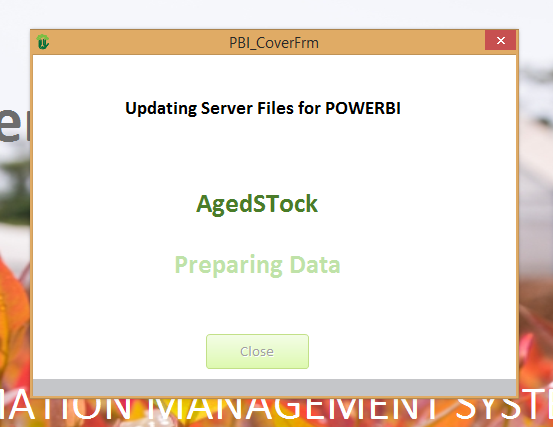
When you click on the upload menu option the loading form will pop-up showing upload progress. When finished you can simply click on the close button to close the form.
Settings

The settings form allows you to edit the automatic upload settings, switch off the upload completely or change the frequency of the uploads.

| Field | Description |
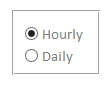 | Select hourly if you wish to upload data based on a hourly interval. Select Daily to to upload at a specific time on a daily basis |
| Hourly Interval | If you selected Hourly you can then select an interval based on hours 1,2,3,4……. etc If you make the interval zero you effectively switch the upload facility off |
| Upload Time | If you select daily then you need to tell NIMS as what time everyday you wish to do the upload. |
| Last Upload Time | NIMS will display the last day and time that the upload was successfully completed |
| Next Upload Time | NIMS will also display when the next upload is due |
 | Click to close the form |