
Once you have completed the setup it is time to start scheduling your daily tasks.
When you created your batches, you linked a schedule to the batch. NIMS uses this schedule to help you setup your daily activities.
The first step is to select a date.
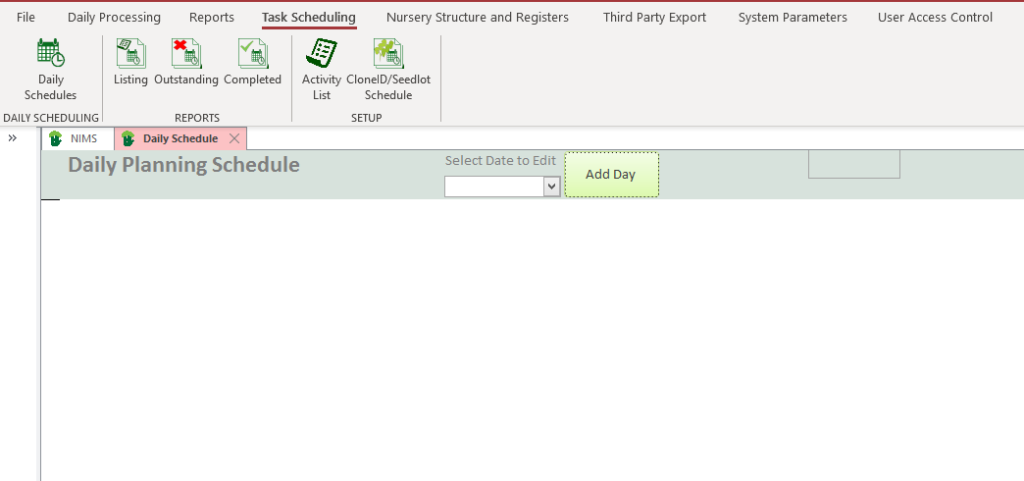
If you have already created a schedule for a date, you can select that day to view or edit the schedule. If it is a new schedule you wish to create , then you can simply add a new day.
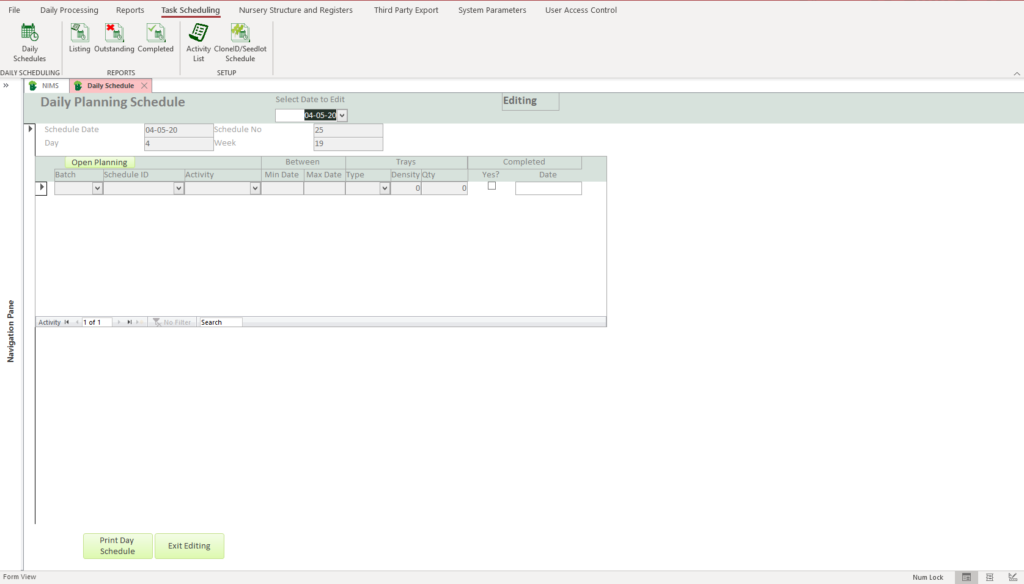
Once you have selected the date you wish to create your schedule for and allocate the batch activities to, you would then proceed to the next step which is to add the activities by clicking on  button.
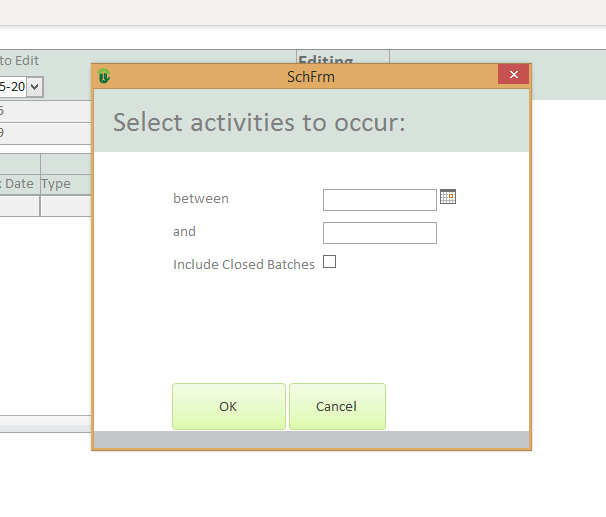
| Field | Description | Use |
| between | Select the beginning date | You are gong to select a range activities based on the two dates |
| and | Select the end date | |
| Include Closed Batches | Click the box | Select if you wish to see activities for closed batches |
 | Click to proceed to next step | This will open the form for selecting the activities you wish to add to this dates schedule |
 | Click to cancel | This will take you back to the previous form |
This will open the activity selection form.

This form lists all outstanding activities for all the batches that should or can occur during the date range you chose on the previous form.
To simplify matters, the form displays all activities with a from date falling into your selected date range. You can therefor broaden or narrow you available tasks by changing your selection range accordingly.
Below is a table describing the columns and what they mean
| Column | Description |
| Activity Code | This is the activity code listed in activity chronological order |
| Batch | This is the batch number of the batch whose activity is now due |
| Clone ID/ Seed Lot | This is the Clone ID or Seed Lot of the Batch |
| From | Up to now you have setup schedules based on age parameters. We now use these parameters to select that due batches based of the progression of days since the plant date. As NIMS allows for a range you have two dates giving you a range of when these activities should be done. |
| To | This is the second date in the range of when an activity should be carried out according to the parameters you have provided. |
| Type | This is the tray type of the batch |
| Density | This is the tray density of the batch |
| Qty | This is the number of trays in the batch |
You would use the above columns to identify the batches you wish to select to add to the days schedule.
| Field | Description | Use |
| Select | Click to select | You would click the checkbox of the batch and activity you wish to add to your schedule. |
 | Click to select all listed activities | |
 | Click to un-select all selected activities | |
 | Click to update the selected activities to this dates schedule | This will copy all the activities you have selected to the day schedule. This would then make up your days schedule |
 | Close the form without updating your schedule |
Once you have selected an activity it will not be available for selection again on another day.
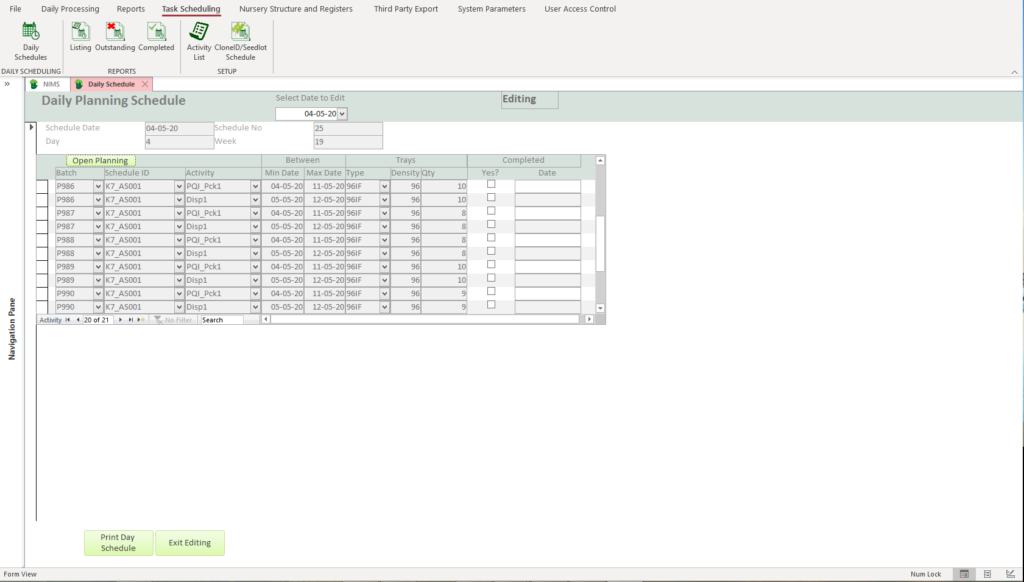
You can now print the schedule for distribution
DailyScheduleThis form can then be completed and returned for capturing. You would then click on the completed check box and select the completion date.
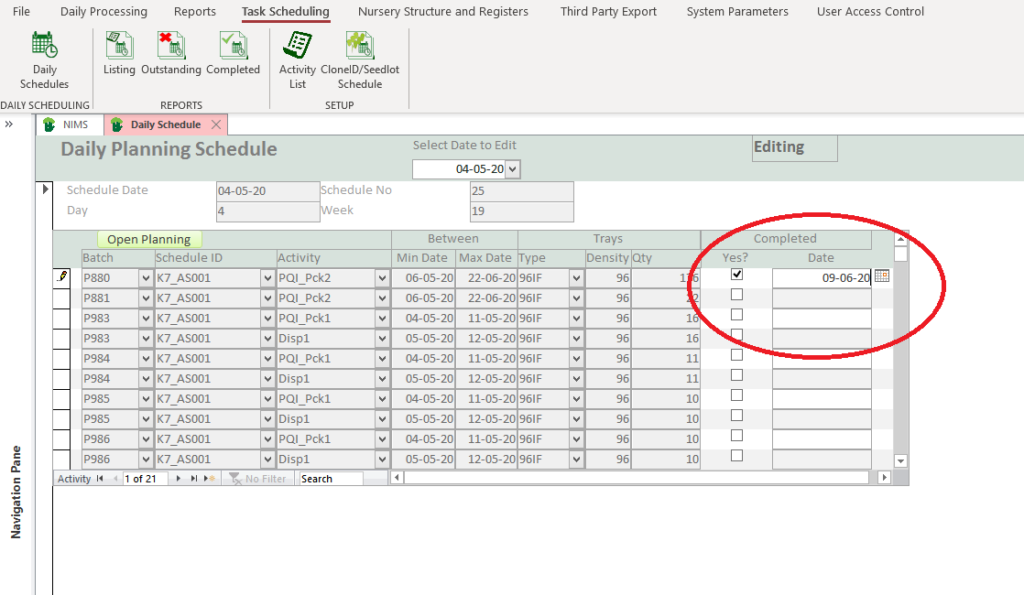
This will allow NIMS to report on completed versus incomplete tasks.