
Order Form
The order form can be used if you have a customer who does nto have their own order form or if their order form does not comply withe the information required by NIMS to process an order
| Field | Description |
| Customer | Name of the customer in your Customer Register |
| Order No | Enter the customer order number |
| Order Date | Enter the date that the order is made. This is NOT the required delivery date. |
| Delivery Date | This is the requested delivery date. As you may be growing specifically for this customer, this date could be well into the future |
| Clone ID or Seed Lot | Enter the Clone ID or Seed Lot number. These codes must be correct and contained in your registers |
| Seedling Qty | Enter the quantity of seedlings ordered |
| Plantation | This is the delivery plantation |
| Plantation ID | This is the Plantation ID |
| Comp | This is the plantation compartment |
| Hectares | This is the compartments hectares. |
For each customer you can setup a 4 tier delivery structure. This is normally:
- Plantation
- Plantation ID
- Compartment
- Hectares
These can however be tailored per customer by following the help under the Dispatch Area Setup section.
Capture and Edit Order
  |
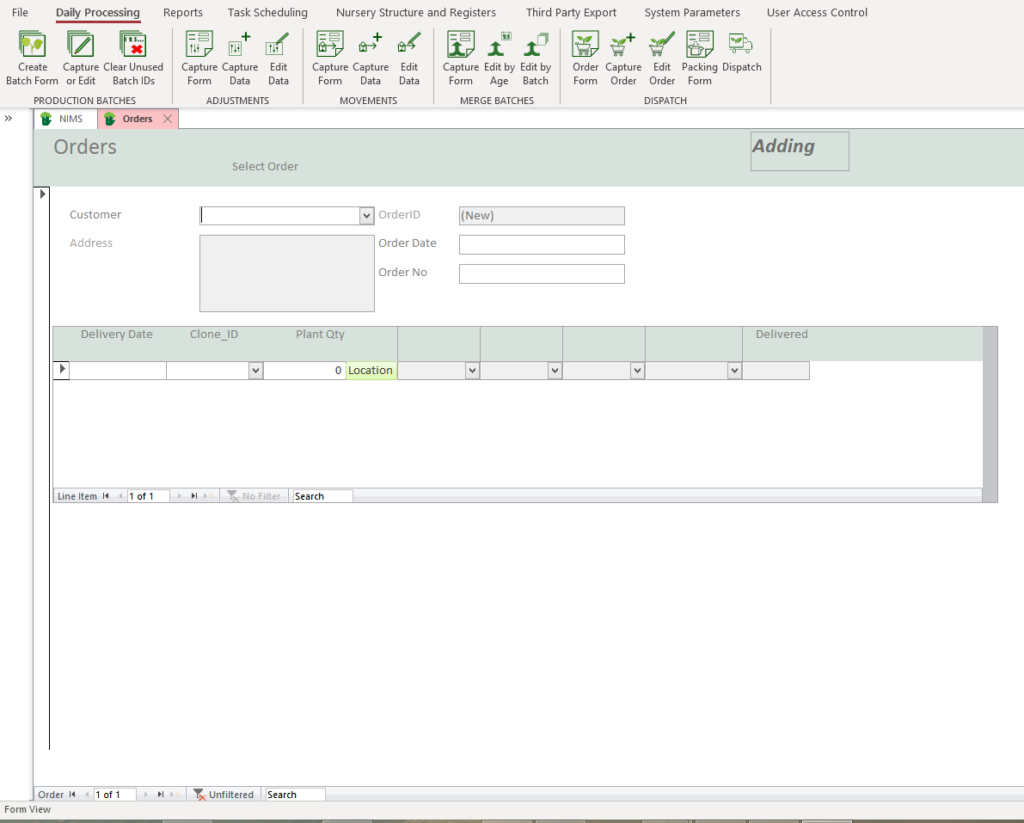
By clicking on Capture Order you get a blank form allowing you to capture a new order.
If you have already captured and order and wish to edit it, then click on Edit Order
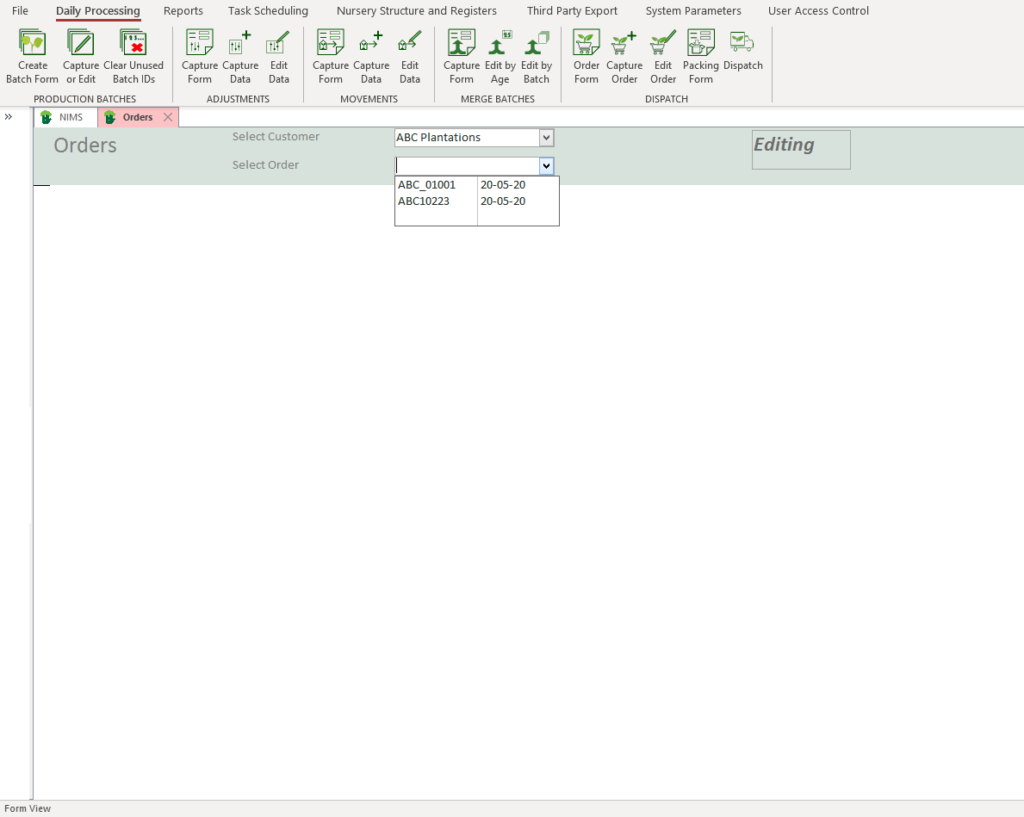
You would select the customers and then the order number you wish to edit
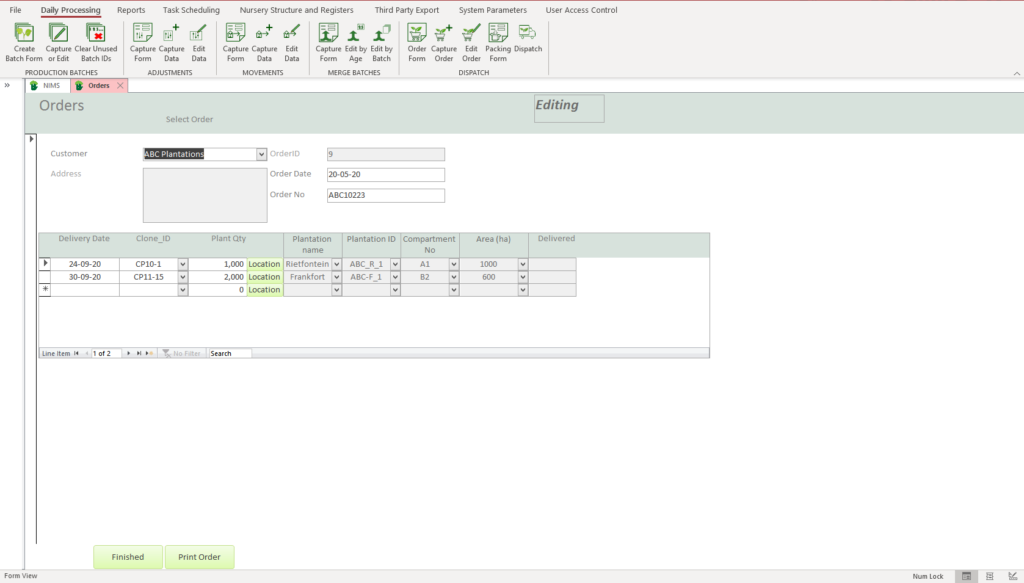
This would open the order for editing.
Below is the Field list with descriptions:
| Field | Description | Use |
| Customer | Select the Customer | The drop down list contains customers in your customer register. This will also populate the address field |
| Order Date | Enter a date | This is the date the order is made. |
| Order No | Customer Order No | Enter the Customers Order number. There is also an internal order id which is assigned whenever you add a new order |
| Line Items | ||
| Delivery Date | Expected Delivery Date | Enter a date that you expect to make delivery on. Please note that you may have a number of order items all with different delivery dates. |
| CloneId | Select Clone ID | This would be a Clone in your clone register. |
| Plant Qty | Enter a quantity | This is the number of plants ordered for delivery to this specific location. You could have a number of line items for delivery of the same clone for example to different locations. |
 | Click to select Location | This will allow you to select a delivery location as per you setup for this customer |

| Field | Example | Use |
| Customer | ABC Plantions | Auto filled from Order and used to select the appropriate field names and drop down content |
| Level 1 | Plantation Name | Select the appropriate data from the drop down. You would have added this data in the Dispatch Area setup under Capture Areas |
| Level 2 | Plantation ID | |
| Level 3 | Compartment No | |
| Level 4 | Area(Ha) | |
 | Click here to update the delivery location on the order | |
 | Click here to cancel the selection and close the form without updating the delivery location |
Once you have completed capturing your order you can print it if required by clicking on the  button.
Packing Form
The packing form is used to prepare your batches for delivery. You would list the batches you require per order line item.
Packing-List| Field | Description | Use |
| Customer | Customer Name | Add the customer name for this packing form |
| Order No | Link this form to a specific order number for the above customer | |
| Order Date | This is the date on which the order was placed | |
| Delivery Date | This is the actual delivery date not the requested delivery date | |
| Clone | Clone or seed lot | |
| Plants Required | The amount of plants required for this line item on the order | |
| Plantation | Where the plants re to be delivered. | |
| Plantation ID | ||
| Compartment | ||
| Hectares | ||
| Batch | Batch No | Enter the batch number of the batch to be shipped |
| No of Plants | Enter the number of plants in this batch to be shipped. Remember you may not ship an entire batch and their may well be a balance of plants left in the batch. This can be delivered to another customer or merged into another batch | |
| Cumulative Total | Add up the plants in each batch | The last entry should balance with the number of plants ordered. |
| Comments |
Dispatch Register and Delivery Notes
The first screen will allow you to either add a new delivery note or to edit a delivery note selecting from the drop down list.
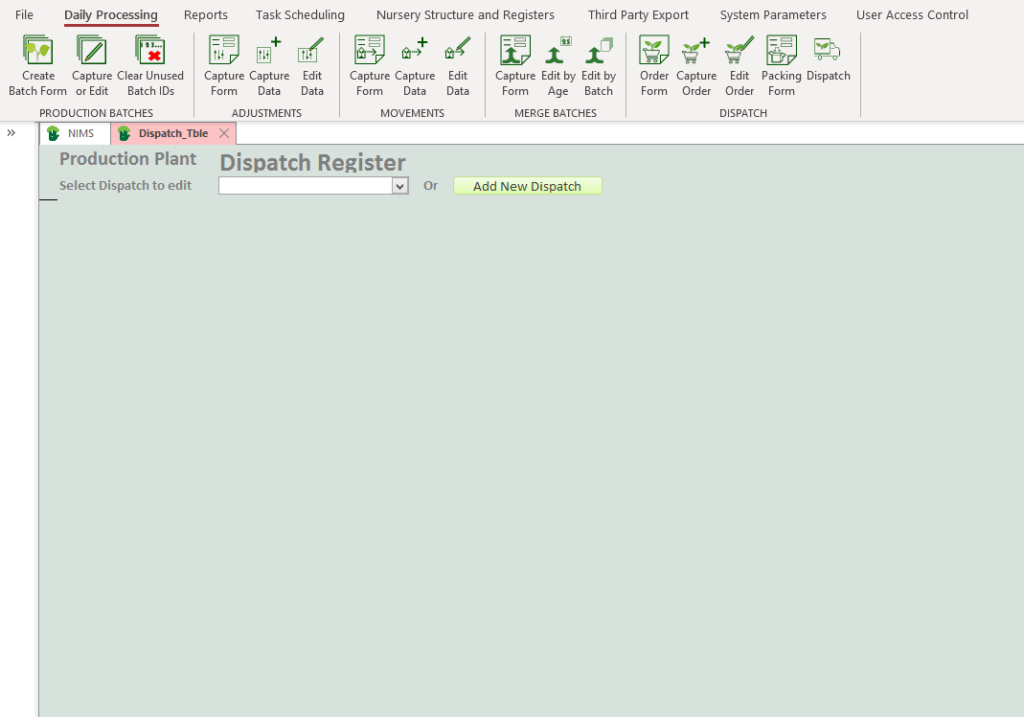
This will open a delivery note for editing or a balnk form for capturing a new delivery note.
In the example below we have already captured data as this will help to explain the process. A delivery item is made up of choosing an order line item and linking it to a batch. You can have as many delivery items as you need on a single delivery note.
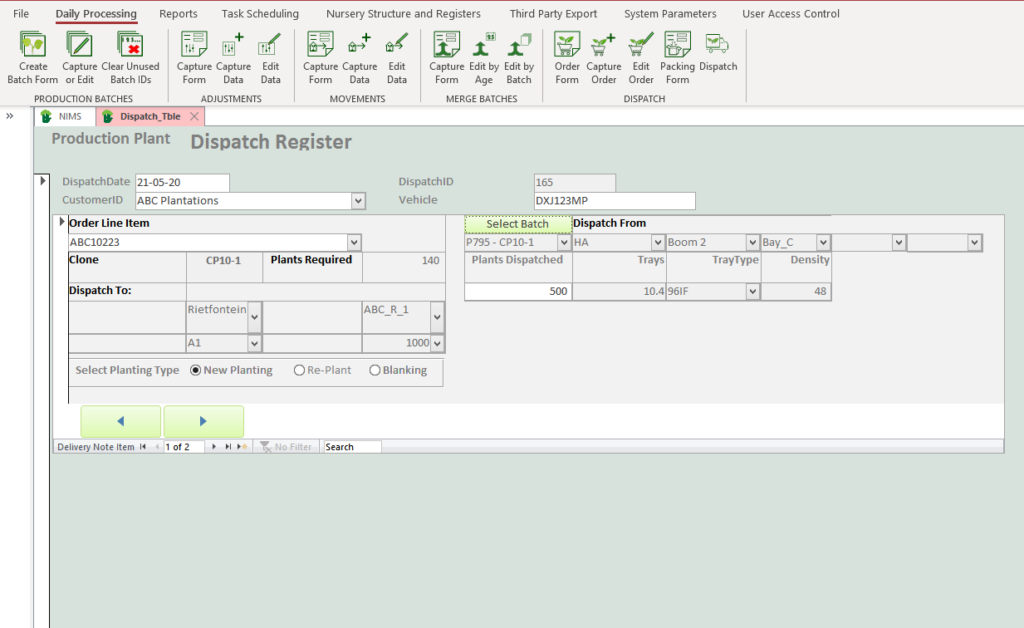
| Field | Description | Use |
| Dispatch Date | Date of dispatch | Select or type a date |
| Customer ID | Select Customer | |
| Vehicle | Vehicle registration or identification | This is for the delivery vehicle transporting the plants |
| Order No | Select the line item from the order number | This field is really a combination of orders and line items. It will also give you additional information in the drop down list |
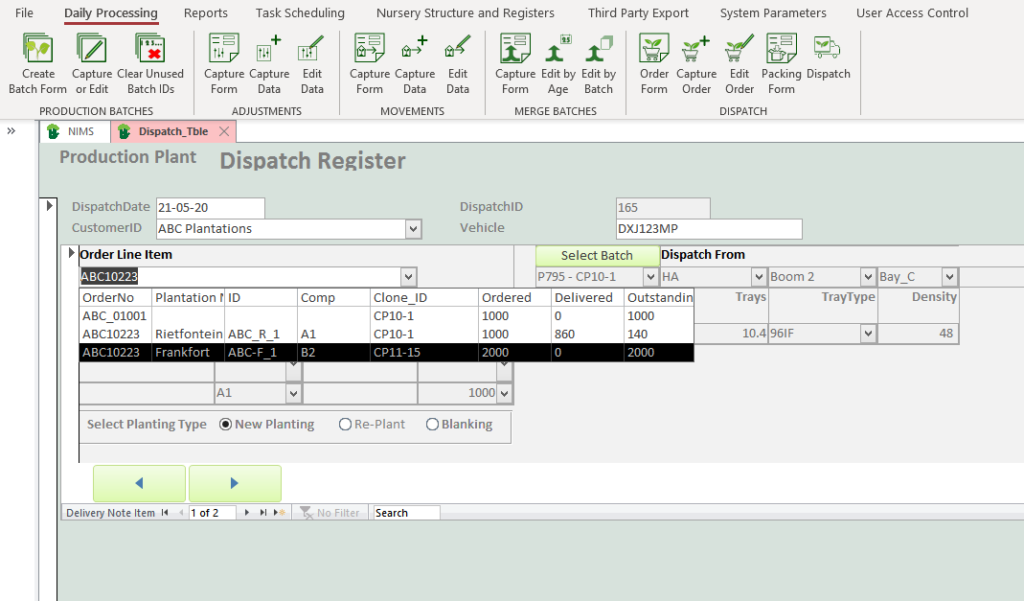
| Column | Description |
| Order No | This is the list of orders for this customer |
| Plantation & ID | The second and third columns are the delivery locations |
| Comp | This is the delivery compartment or Level 3 description |
| Clone ID | Is the ordered clone or seed lt |
| Ordered | This is the quantity originally ordered |
| Delivered | This is the quantity that has already been delivered |
| Outstanding | This is the quantity still outstanding before any batches on this form |
You will notice that these are in fact line items rather than orders themselves.
When you select a line item NIMS then populates the other fields (grayed out) for you.
The next step is to choose the batches that you will use to fill the order.
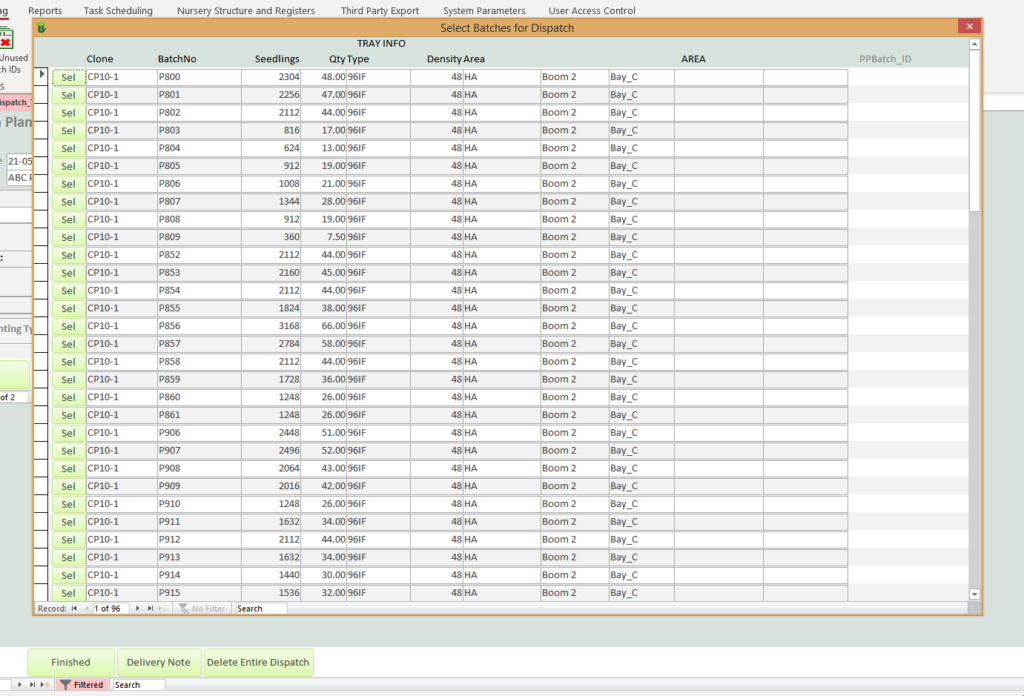
If the batch has to many plants you can override the delivery quantity. All this means is that the delivered batch will remain in the nursery with a balance of plants not delivered.
On the other hand, if you do not have a batch large enough, you can deliver more than one batch to a line item by adding another delivery line. This is done by using either the large arrow buttons or the navigation bar.
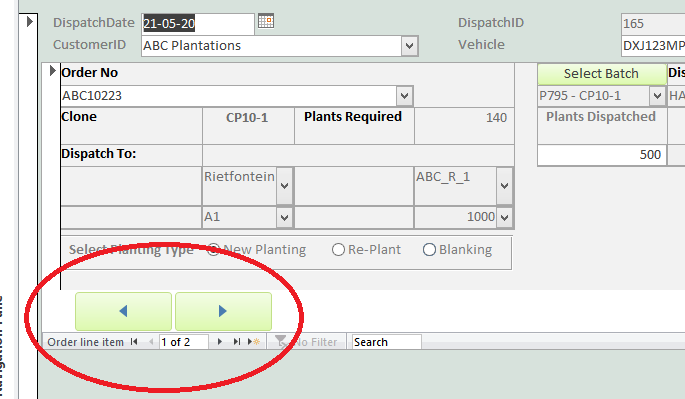
The navigation bar and arrows can be used to negotiate through the lines of the delivery note.
Print Delivery Note
Once you have finished capturing your delivery note, you can print it by clicking on  button. This will display the following delivery note in print preview
Delete a Dispatch Delivery Note
As the dispatch is fairly complex with many links, if you wish to delete a dispatch we have provided a button to do so. Clicking on  will delete the Delivery Note as well as all delivery line items and reset the batch quantities.
Once you have finished you can click on the  button to close the form.